How to use Avklare
A quick walk-through of everything you need to know — from adding your first task to customizing the app to fit the way you work.
Adding your first task
Click the + New Task button on the Matrix page. A panel opens with everything you need: title, description, status, effort estimate, and a due date.
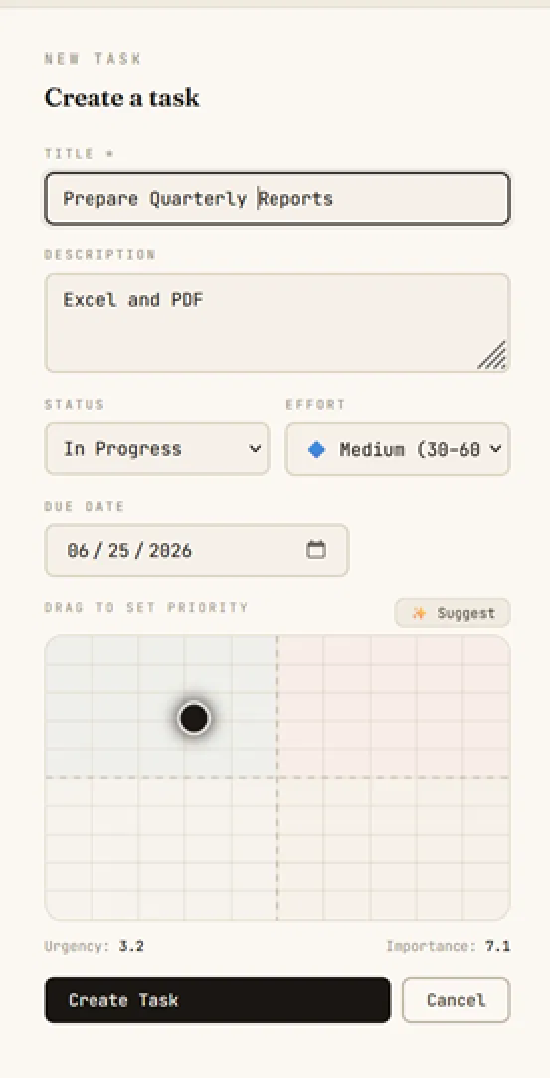
At the bottom of the panel is a mini-matrix — drag the dot to set urgency and importance right when you create the task. This is what makes Avklare different: priority isn't an afterthought, it's part of capturing the task.
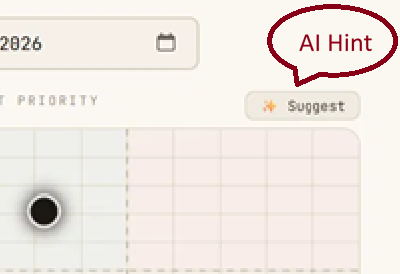
The ✦ Suggest button lets AI recommend a priority based on your existing tasks.
Not sure where a task belongs on the priority grid? Hit the ✦ Suggest button and Avklare's AI will recommend a placement based on your current workload.
Reading your Matrix
The Matrix is your priority map. Tasks are plotted spatially — urgency runs left to right, importance runs bottom to top. Four quadrants emerge naturally:
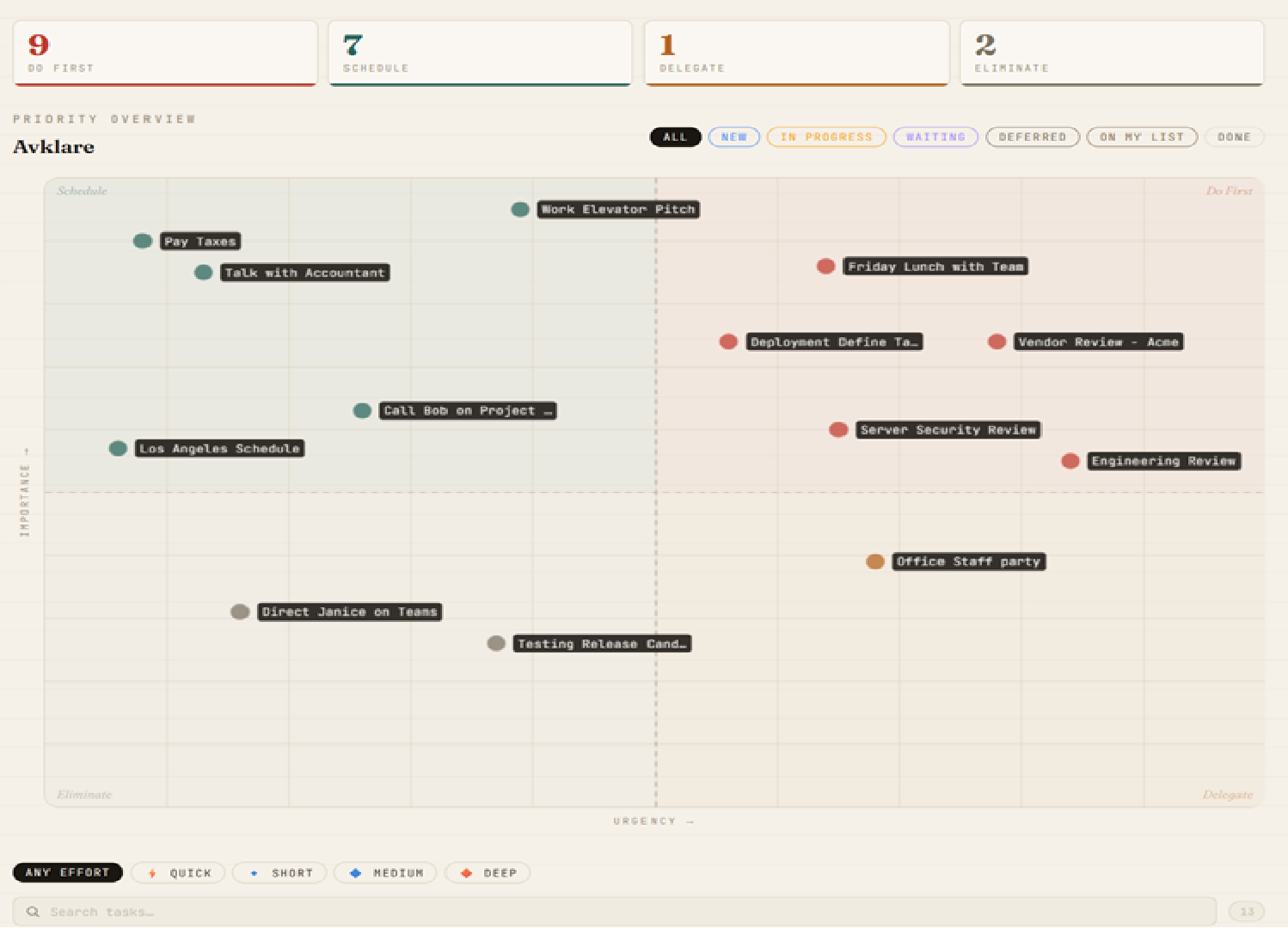
The four quadrants
- Do First (top-right) — urgent and important. Handle these now.
- Schedule (top-left) — important but not urgent. Plan when you'll do them.
- Delegate (bottom-right) — urgent but not important. Hand off if you can.
- Eliminate (bottom-left) — neither urgent nor important. Consider dropping these.
The summary bar at the top shows a count for each quadrant so you can see at a glance how your workload is distributed. The colored dots on each task reflect its current stage (New, In Progress, Waiting, etc.).
To reprioritize a task, simply drag it to a new position on the grid. Its urgency and importance scores update automatically to match where you drop it.
Dragging a task to reprioritize it, then opening its detail panel to edit.
Use the stage filter pills (All, New, In Progress, Waiting, etc.) above the grid to focus on specific workflow stages.
Using the stage filter pills to focus on specific workflow stages.
Click any task on the Matrix to open its detail panel, where you can edit the title, description, due date, stage, category, and more.
Your Daily Mash-Up
The Daily page is your morning action surface — it takes everything on your Matrix and translates it into a focused, prioritized list for today. Sections are organized by urgency and importance: Overdue, Due Today, Do First, To Schedule, and On the Horizon.
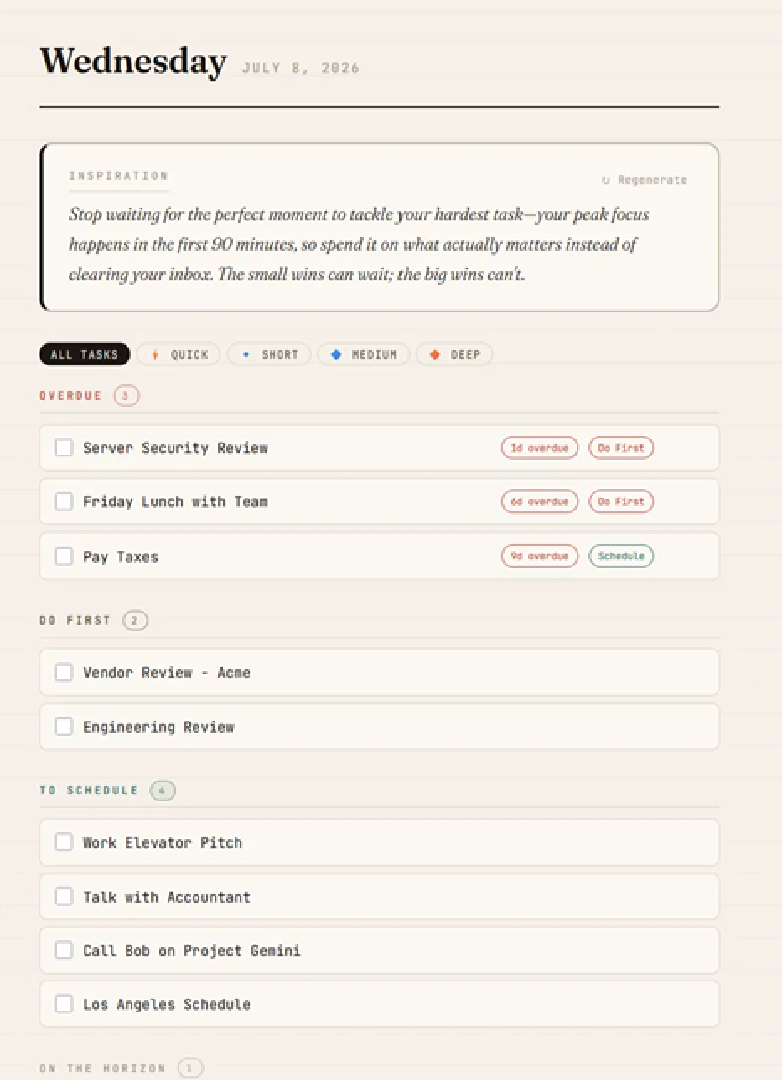
Effort filters
Short on time? Use the effort filter pills at the top to show only tasks that match the time you have available — Quick, Short, Medium, or Deep. This is especially useful when you've got 15 minutes before a meeting and want to knock something out.
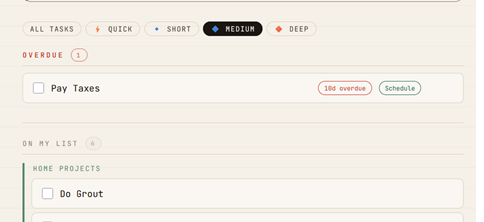
With "Medium" selected, only tasks estimated at 30–60 minutes appear.
The Daily Mash-Up also shows a daily Inspiration quote at the top — a short productivity nudge powered by AI. You can toggle this on or off in Settings, and hit "Regenerate" for a fresh one.
The Daily Mashup shows you all of your Tasks, Habits and List-Items in one place. Re-prioiritizing a task? The Daily view dynamically presents them to you by date and priority. Making sense of your priorities.
Your Daily Mashup, All your Matrix tasks, Habits and List-Items in one place.
Getting AI Insights
Click Get Insights on the Matrix page and Avklare's AI analyzes your entire board — overdue clusters, competing deadlines, neglected important work — and tells you what it sees in plain language.
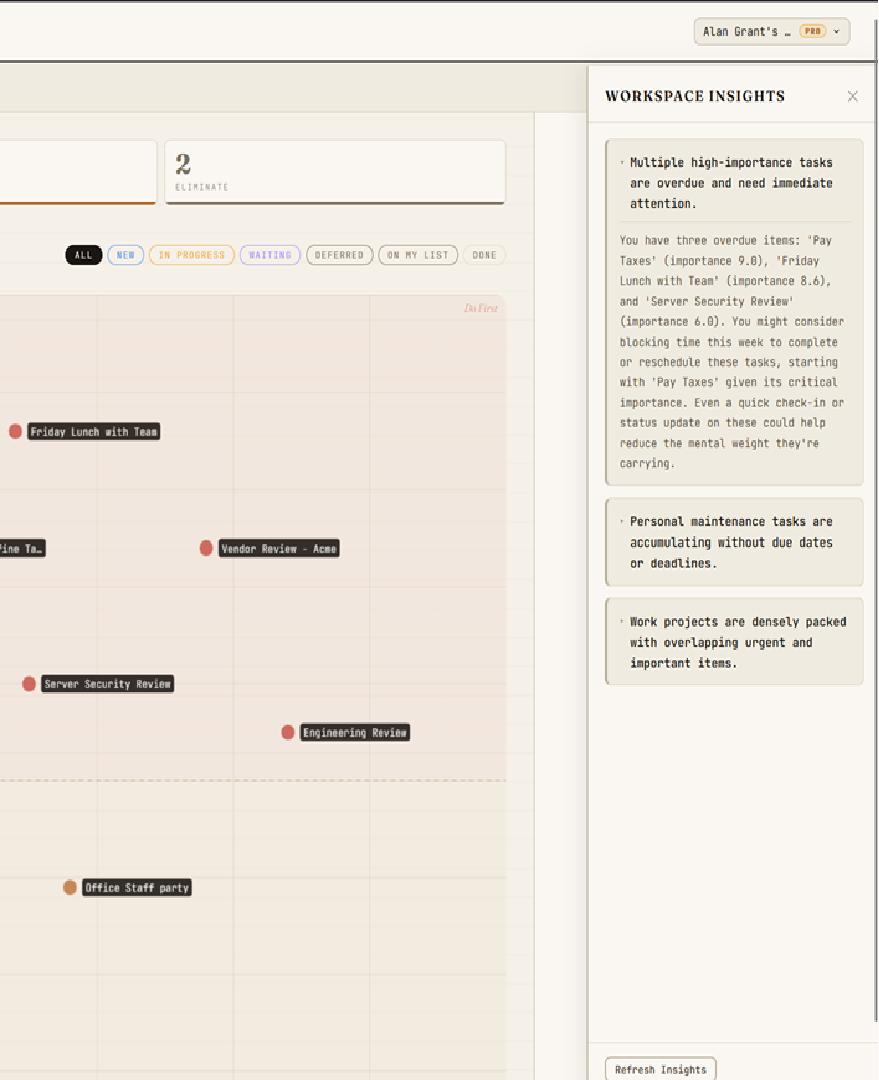
Each insight has a summary (the bold heading) and an expandable detail section with specific task names and actionable suggestions. Click any insight to expand it.
Adjusting the tone and count
In Settings, you can tune how the AI talks to you. Choose Soft for gentle coaching, Firm for balanced directness, or Hard for blunt, no-nonsense feedback. You can also set how many insights to generate per analysis (2, 3, or 5).
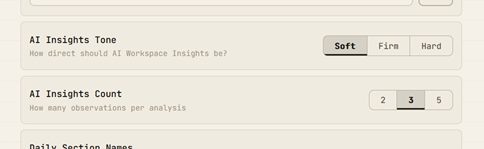
AI Insights is available on Pro and Premium plans. Free plan users get a limited number of daily AI calls across all AI features (Insights, Smart Placement, and Inspiration).
Avklare's AI Insights offers guidance on your tasks, based on how you have set your priorities. AI points out where you might find opportunies to be more efficient in managing your time and tasks. You can even set the tone you want AI Insights to respond in; Soft, Medium, Hard and now even with Humor.
AI Insights - Avklare's AI analyzes your tasks and helps you to be more productive.
All three AI features
Avklare uses AI in three distinct places — each designed to help you think about your work differently, not just manage it faster.
Workspace Insights
The headline AI feature. Click Get Insights on the Matrix page and Avklare analyzes your entire board — overdue patterns, competing deadlines, neglected Q2 work — and tells you what it sees in plain language. You choose the tone (Soft, Firm, or Hard) and how many insights to generate. Each insight has a summary you can expand for specific task names and actionable suggestions. See the full walkthrough above.
Smart Task Placement
When you're creating a new task and aren't sure how to prioritize it, hit the ✦ Suggest button on the Create Task panel. Avklare looks at your existing tasks — what's already urgent, what's important, where the gaps are — and recommends where the new task should sit on the urgency × importance grid. You can accept the suggestion or adjust it before saving.
Daily Inspiration
A short, AI-generated productivity nudge displayed at the top of your Daily Mash-Up each morning. It's not a generic quote — it's written fresh each day with the kind of practical, motivating advice that helps you start focused. Toggle it on or off in Settings, and hit Regenerate if you want a new one.
All three AI features share a daily call limit that varies by plan: Free gets 10 calls per day, Pro gets 35, and Premium gets 100. Each Insight request, Suggest tap, or Inspiration regenerate counts as one call. The limit resets at midnight UTC.
Customizing categories and stages
Avklare comes with default categories (Later, Shopping, Personal, General Notes, Home Projects) and workflow stages (New, In Progress, Waiting, Deferred, Completed, Cancelled, On My List). You can customize all of them in Settings.
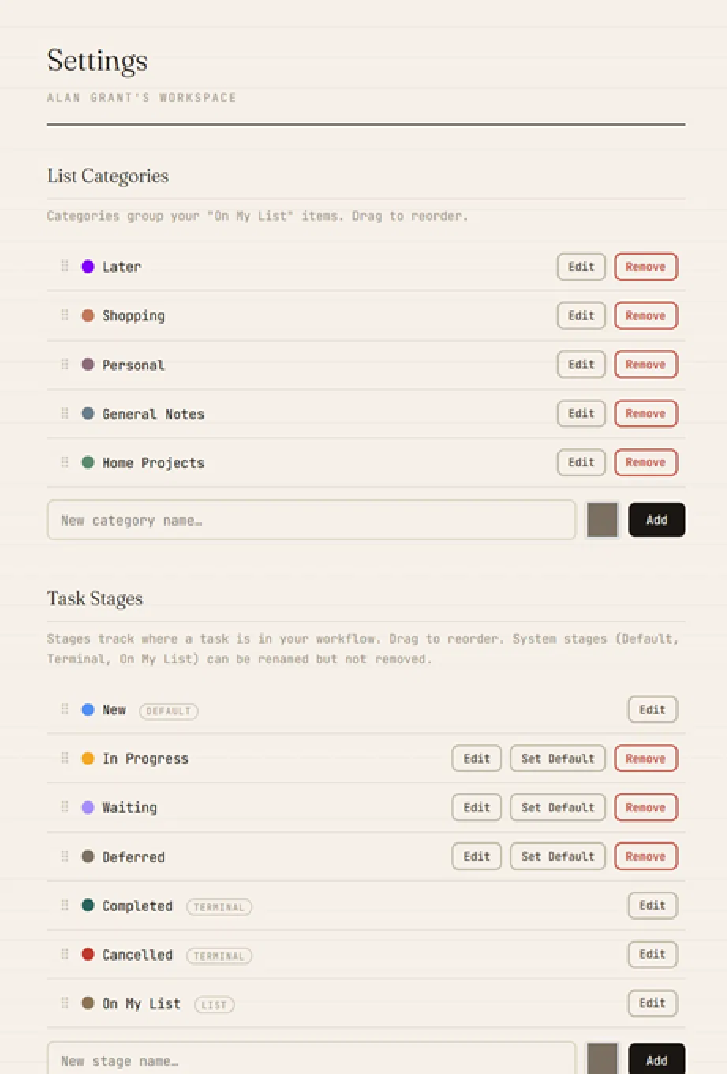
Adding and editing categories
- Go to Settings and scroll to List Categories.
- Type a name in the "New category name" field and click the color swatch to pick a color.
- Click Add.
- To rename or recolor an existing category, click Edit, make your changes, and click Save.
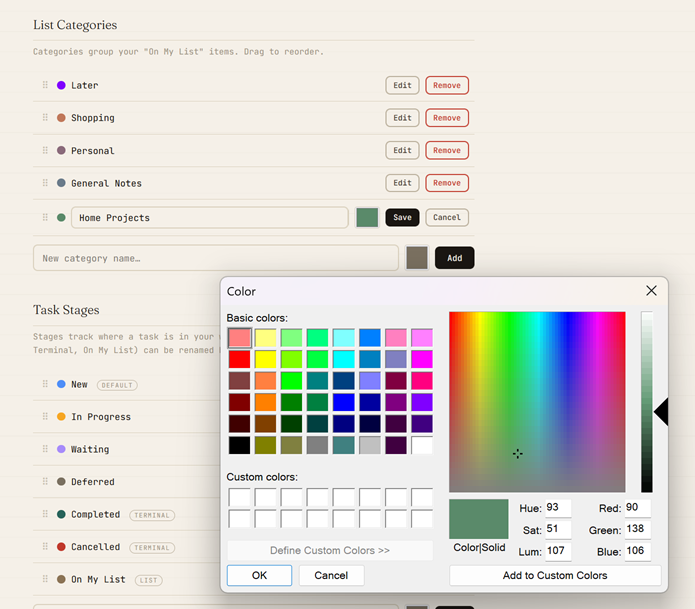
Click the color swatch to open the picker — choose from basic colors or define custom ones.
Reordering
Both categories and stages can be reordered by dragging the grip handles (the dotted icons on the left side of each row). The order you set here is the order they'll appear in dropdowns throughout the app.
Task stages
Stages track where a task is in your workflow. Some stages are system-managed — Default (the stage new tasks get), Terminal (Completed, Cancelled — tasks here leave the active Matrix), and List (On My List — the "Someday" bucket). System stages can be renamed but not removed. You can add your own custom stages on Pro and Premium plans.
Custom categories and custom stages are available on Pro and Premium plans. Free plan users can rename the defaults but can't add new ones.
Daily MashUp Headers
You can edit the Daily Headers, adding your own custom touch (Pro and Premium plans). This way, you can tailor your Daily view to the way that best suits your view on the world.
AI Insights - Avklare's AI analyzes your tasks and helps you to be more productive.
Email digests
Don't want to open the app every morning? Enable email digests and Avklare will send you a summary of your tasks — overdue items, what's due today, and what's on the horizon — delivered to your inbox on the schedule you choose.
Setting it up
- Go to Settings and scroll to Email Digest.
- Toggle Enable Digest to On.
- Choose your frequency: Daily or Weekly.
- If you chose Weekly, pick which day you'd like to receive it.
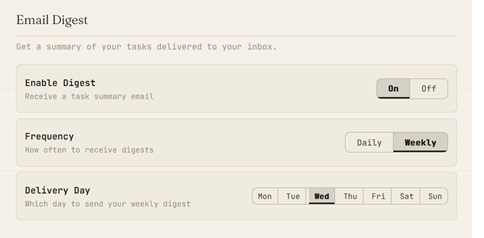
What you'll receive
The digest email groups your tasks into sections — Overdue, Due Today, and On the Horizon — each showing task titles with a quadrant tag (Q1–Q4) so you know at a glance what's urgent vs. important. A single button takes you straight into Avklare.
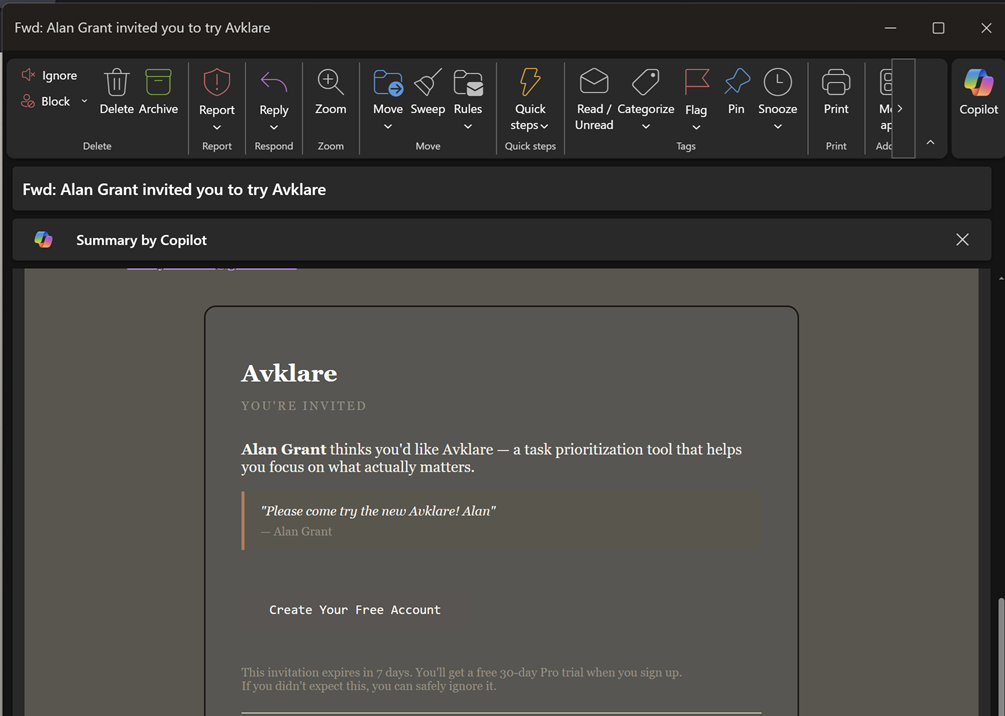
A digest email in your inbox — same warm Avklare styling, easy to scan.
Email digests are available on Pro and Premium plans. To turn them off at any time, just toggle Enable Digest back to Off in Settings.
Avklare on your phone
Avklare Go is the phone version — your day, your lists, and your matrix, built for a small screen. You can add it to your home screen so it opens like any other app: full screen, no address bar, one tap from wherever you keep your icons.
There's nothing to download and no app store account needed — your phone builds it straight from the website. It takes about fifteen seconds. The steps are a little different on iPhone and Android, so pick yours below.
Before you start, open app.avklare.com/Go in your phone's browser and sign in, so you're looking at your Daily screen. Adding it from the sign-in page gives you a plain bookmark instead of the app — it looks like it worked, and it didn't.
On an iPhone or iPad
You'll need Safari. Apple only allows this from Safari — if you're in Chrome, Firefox, or Edge on an iPhone, the menu item you're looking for simply won't be there.
Your iPhone won't offer to do this for you. There's no pop-up and no prompt — you add it yourself, and here's how:
- Open Safari, go to app.avklare.com/Go, and sign in.
- Tap the Share button — the square with an arrow pointing up, in the bar at the bottom of the screen.
- Scroll down the list of options and tap Add to Home Screen.
- The name is already filled in for you. Tap Add.
The Avklare icon appears on your home screen. Tap it and Avklare opens full screen, just like an app you'd downloaded.
On an Android phone
You'll want Chrome. Android does most of the work here — it will usually offer to install Avklare for you.
- Open Chrome, go to app.avklare.com/Go, and sign in.
- Watch for an Install prompt, or the small install icon at the right-hand end of the address bar. Tap it and confirm.
- If nothing appears, tap the ⋮ menu at the top right and choose Install app. (Some versions of Chrome call it Add to Home screen.)
Avklare lands in your app drawer alongside everything else, and behaves the same way.
If something doesn't look right
No install option in Chrome? Check that you're signed in and the address bar reads app.avklare.com/Go. Chrome can't install the sign-in page — only the app behind it.
Installed it before and removed it? Chrome stops offering for a while after you uninstall something. The ⋮ menu still works — choose Install app from there.
On an iPhone and can't find "Add to Home Screen"? You're almost certainly in Chrome rather than Safari. Open the same address in Safari and try again.
Avklare Go and the desktop app are the same account and the same data — add a task on your phone and it's on your Matrix before you sit down. Go is built for capture and for working through your day; the full Matrix, Insights, and Settings live on the desktop.
Ready to get organized?
Try Avklare free →Questions or feedback? Use the Feedback form in Settings — we read every message.